
Help
How does this work?
31 questions with answers, sorted by area. The images show how things look today; if something differs from the description, the description is out of date and we would welcome a note.
Entering a competition
From the announcement to the binding entry, with and without an account.
How do I enter a competition?
The competition overview lists every competition that is currently taking entries. Clicking a competition opens its announcement with the date, location, entry fee and classes.
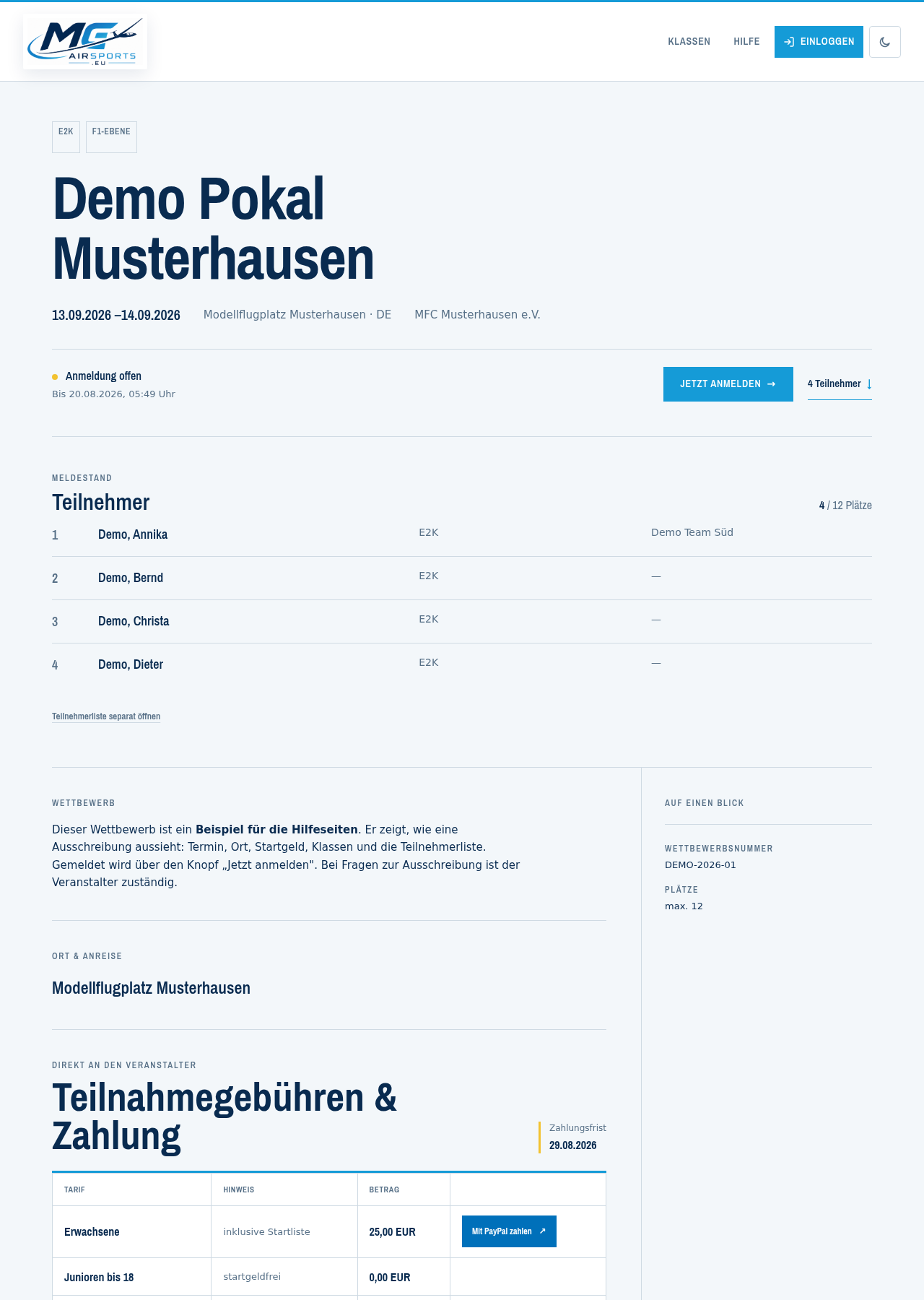
The “Enter now” button starts the entry in five steps. If it says “Join the waiting list” instead, the competition is full; the entry works exactly the same way, it just ends up on the waiting list.
The five steps are:
- Person — who is being entered
- Classes — in which classes
- Team — alone or in a team
- Additional questions — what the organiser wants to know
- Check — look over everything once more and enter bindingly
You can go back between the steps; your input stays as it was.
Do I need a user account in order to enter?
No. If the organiser allows it, you can enter without an account. In the first step you then give your first name, surname and country; an email address is optional.
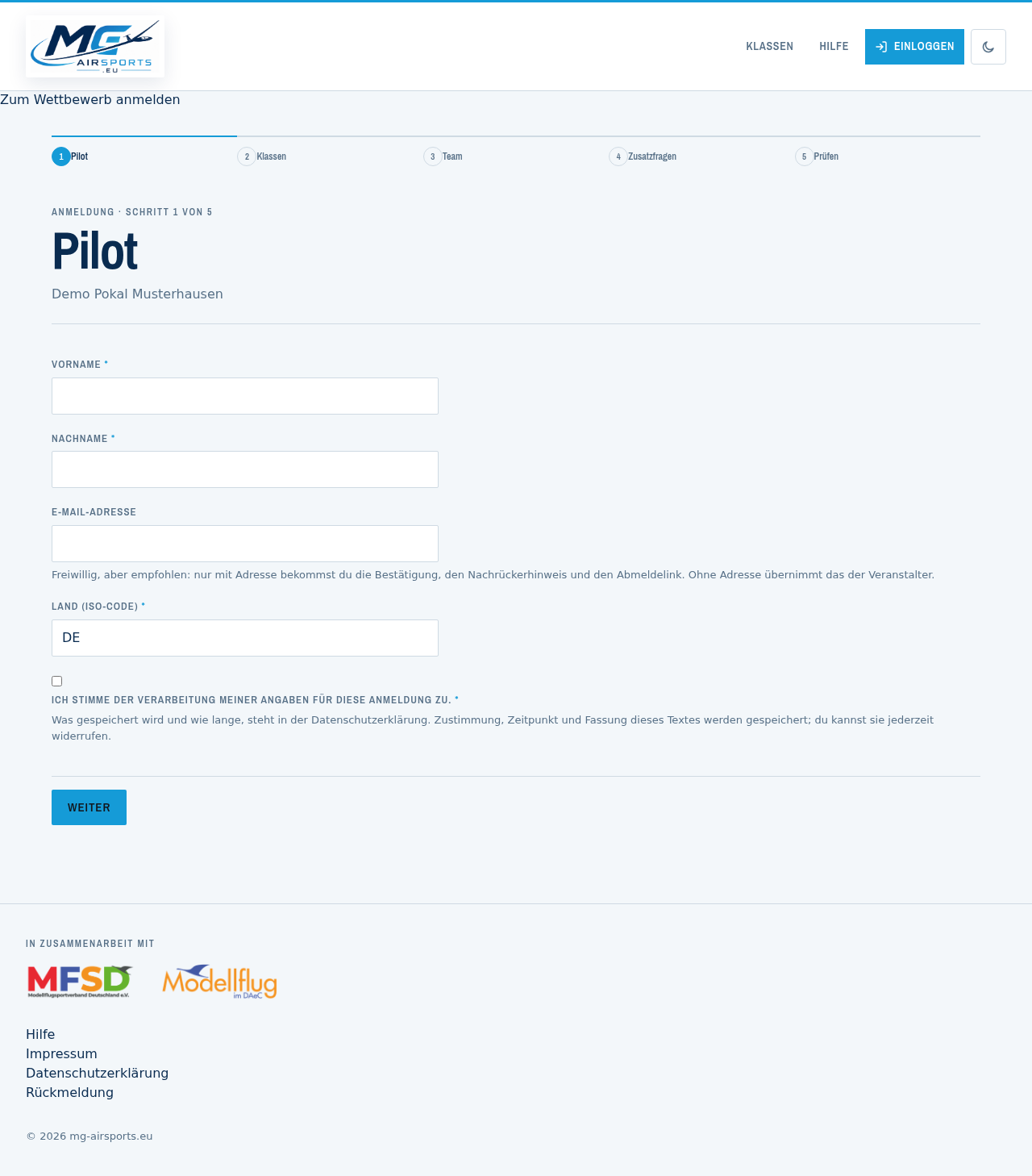
With an email address you get:
- a confirmation of your entry,
- a message when you move up from the waiting list,
- a personal link that lets you withdraw on your own.
Without an address your entry counts immediately, but you receive none of these messages. To withdraw or change it you then contact the organiser, whose details are on the competition page.
Having an account is more convenient: create one and your details are already filled in, you see all your entries in one place, and you can change them yourself.
Which classes can I compete in?
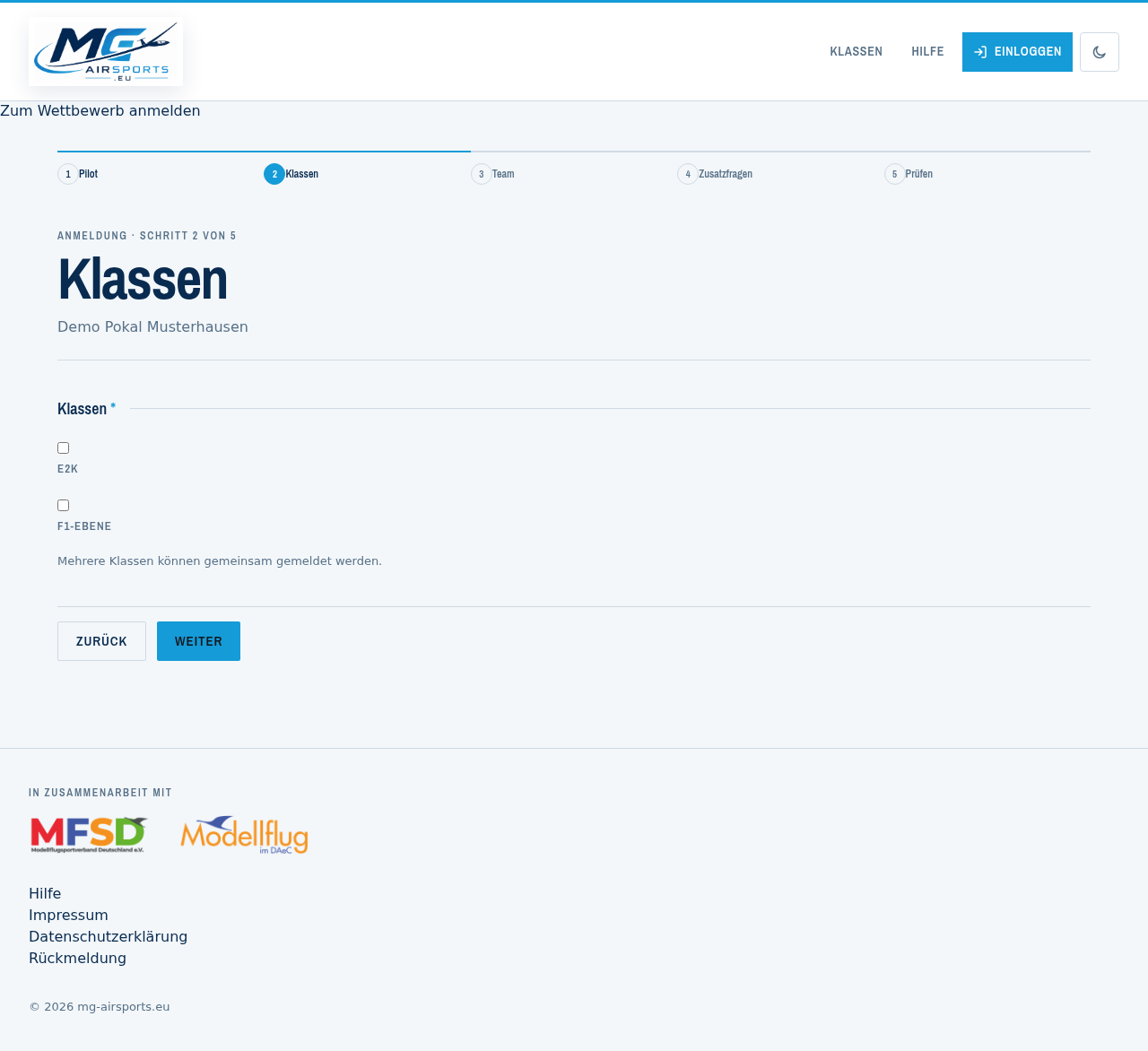
The second step lists the classes this competition offers. You can tick several if you are competing in more than one.
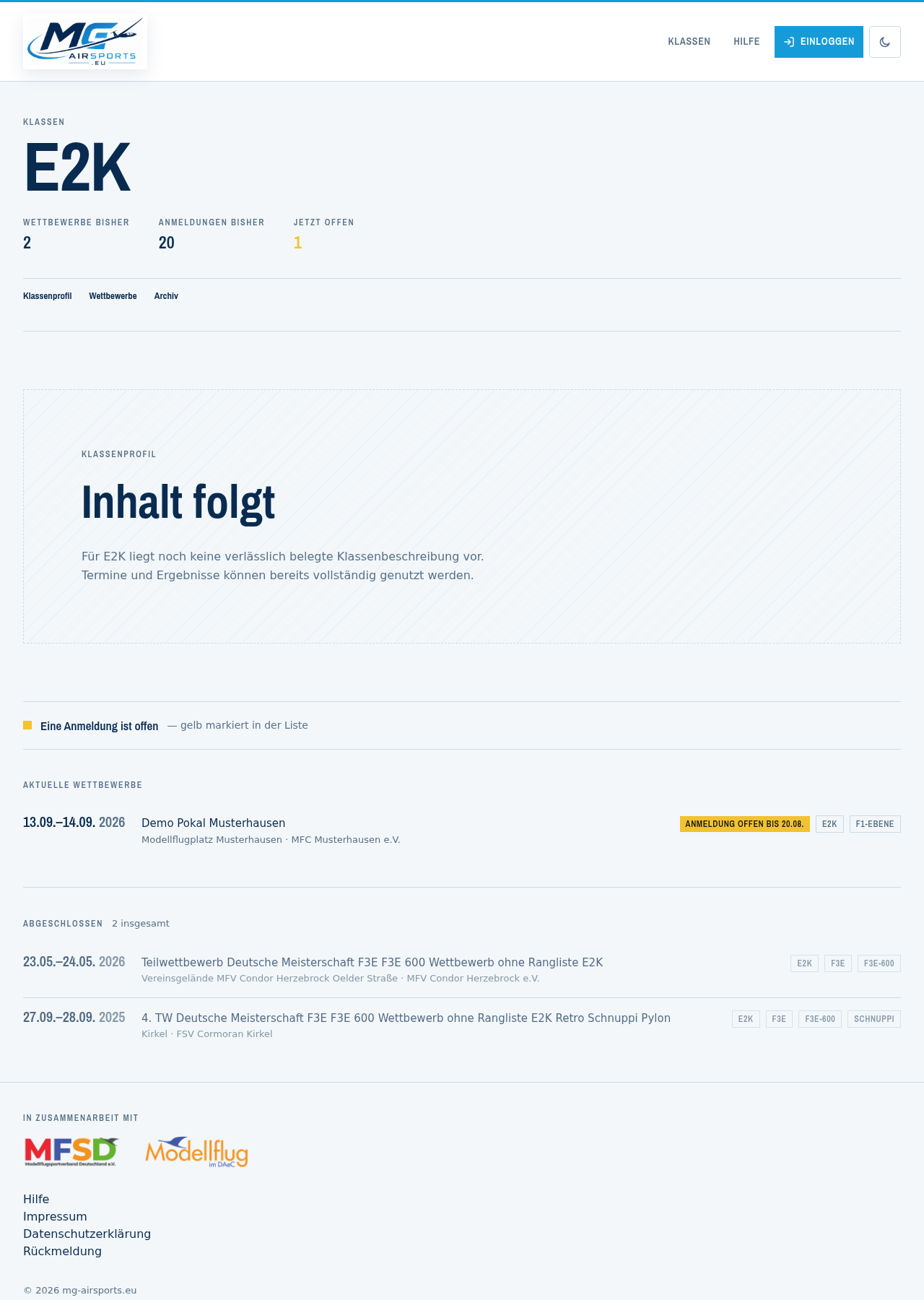
Which classes exist at all, and what is flown in them, is described on the class pages. “Classes” on the front page leads there.
If a class is missing, it can be applied for: apply for a new class.
How do I enter as part of a team?
In the third step you decide how the team appears in the start list. There are several routes:
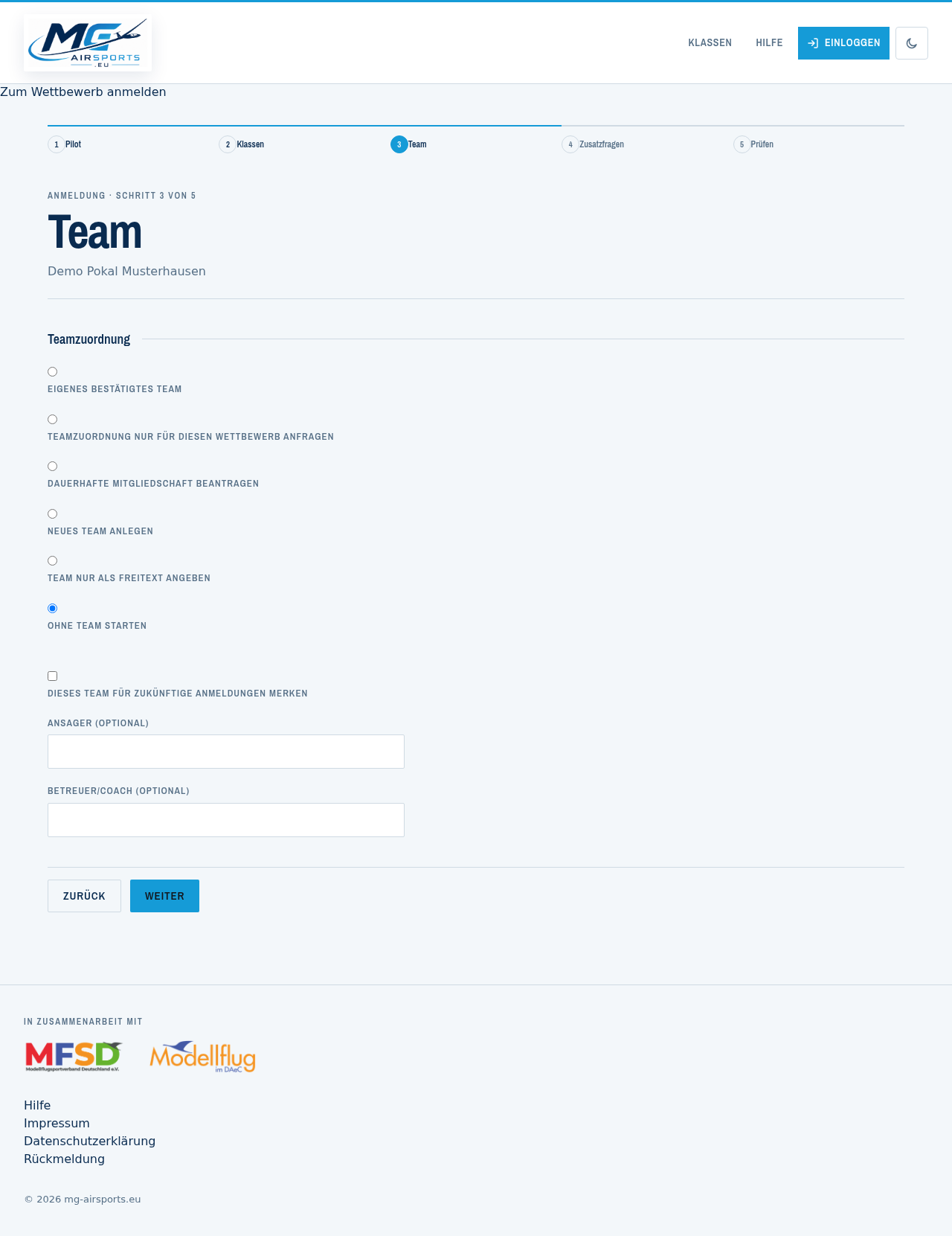
- No team — you compete on your own.
- Own team — one of your confirmed teams. They are listed under My teams.
- Request an existing team — its members decide. Until then your entry stands; only the team assignment is open.
- Create a new team — only with a user account, because a team is permanent and has to belong to somebody.
- Team name as text — for the one-off case, without creating a team.
Some classes require a team. The wizard then does not allow “no team” and tells you so.
What are the additional questions in the fourth step?
Organisers can ask for details of their own: licence number, accommodation, meals, or proof such as insurance or a parent's consent. What is asked is up to the organiser of each competition.
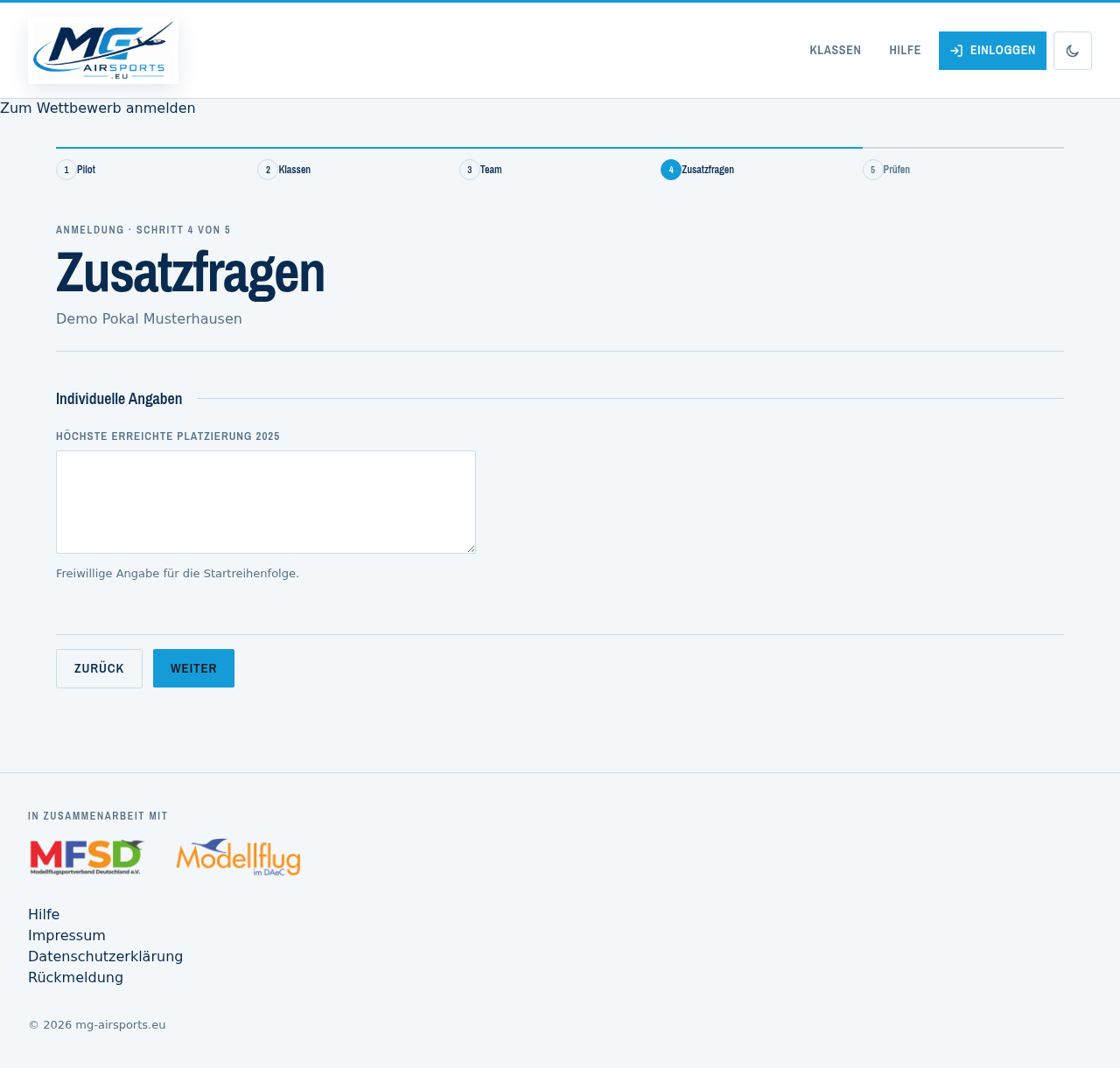
Uploaded proof is stored in a non-public area. It can only be retrieved by the administration and by the organiser of that competition, and cannot be guessed from a link. More on this in the privacy policy.
If a competition asks nothing, you skip this step with “Continue”.
What happens in the last step?
The fifth step shows everything once more: person, classes, team, and whether you end up on the participant list or the waiting list.
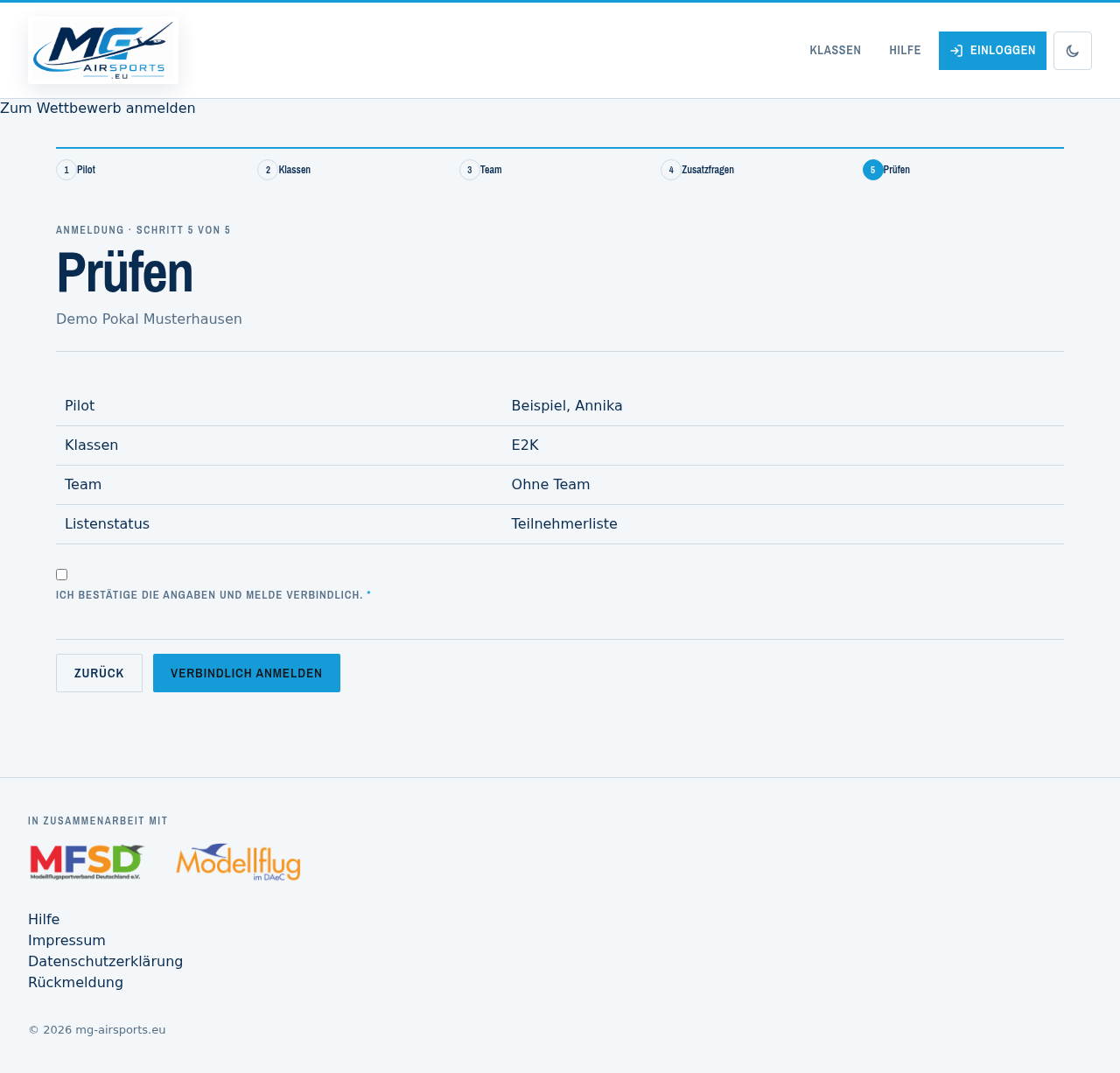
Only with the tick and the “Enter bindingly” button does the entry exist. Until then nothing is saved, and you can still change any step.
After that your place is reserved. It becomes binding in terms of the entry fee once you have paid — the payment details are on the competition page under “Payment”.
How do I pay the entry fee?
The competition page has a section called “Entry fees & payment”. It lists the rates, the payment deadline and the ways in which the organiser accepts money.
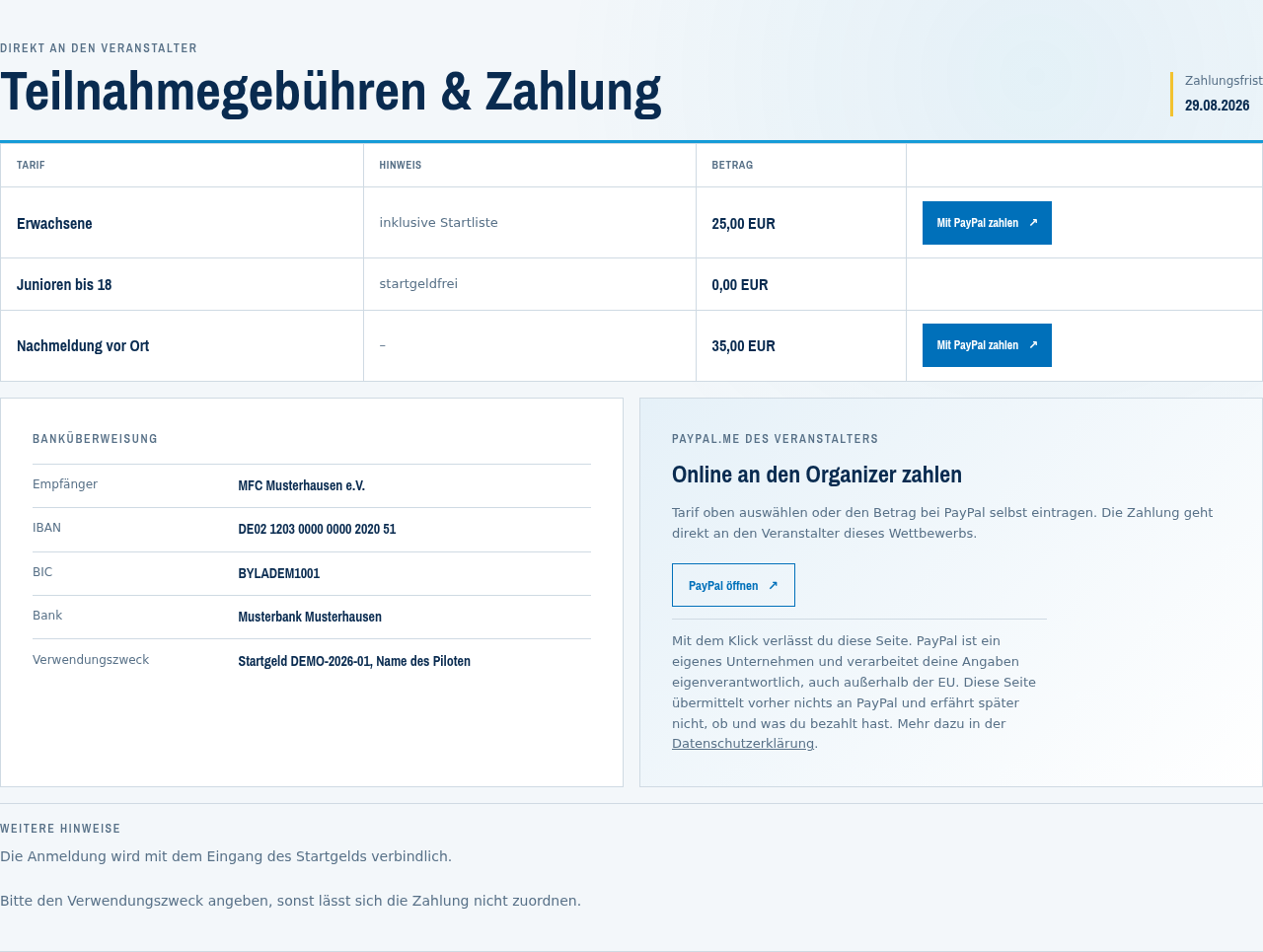
This site does not take money. There is no account here, no basket and no invoice. You pay the organiser directly — by bank transfer or, if they offer it, through their PayPal link. Both go past this site entirely.
Bank transfer. The recipient, IBAN, BIC and bank are in the left-hand box. The payment reference matters: without it the organiser cannot match the payment, and your entry stays marked as unpaid. If a pattern is given there, such as “Entry fee DEMO-2026-01, pilot's name”, fill it in exactly like that.
PayPal. If the organiser offers it, each rate has a “Pay with PayPal” button next to it. The amount for that rate is already filled in; you can still change it at PayPal. The destination is the organiser's PayPal account, not this site's.
PayPal is a separate company. The button is an ordinary link, not an embedded payment window: as long as you do not click it, nothing goes to PayPal — no address, no cookie, no tracking pixel. Clicking takes you off this site, and from then on PayPal's privacy policy applies; processing there is on their own responsibility and partly outside the EU. In return, this site learns nothing from PayPal, not even whether you paid. Set out in the privacy policy.
Anyone who does not want to use PayPal can transfer the money — or ask for another route. It puts you at no disadvantage when entering.
By when. The payment deadline is next to the rates. The entry becomes binding when the money arrives — so with places in short supply, it counts.
Why is my entry still marked as outstanding after I paid? Because a person records the payment. The organiser sees the amount in their account and sets the mark by hand; a few days between payment and mark are quite normal. That is not a fault and it does not cost you your place.
If a rate is missing, an amount looks wrong, or there are no payment details at all, ask the organiser — not us. We see neither their accounts nor their arrangements.
The competition is full. What does the waiting list mean?
If a competition has a participant limit and that limit is reached, further entries go onto the waiting list. It is publicly visible when the organiser makes the participant list public — so you can see the position you hold.
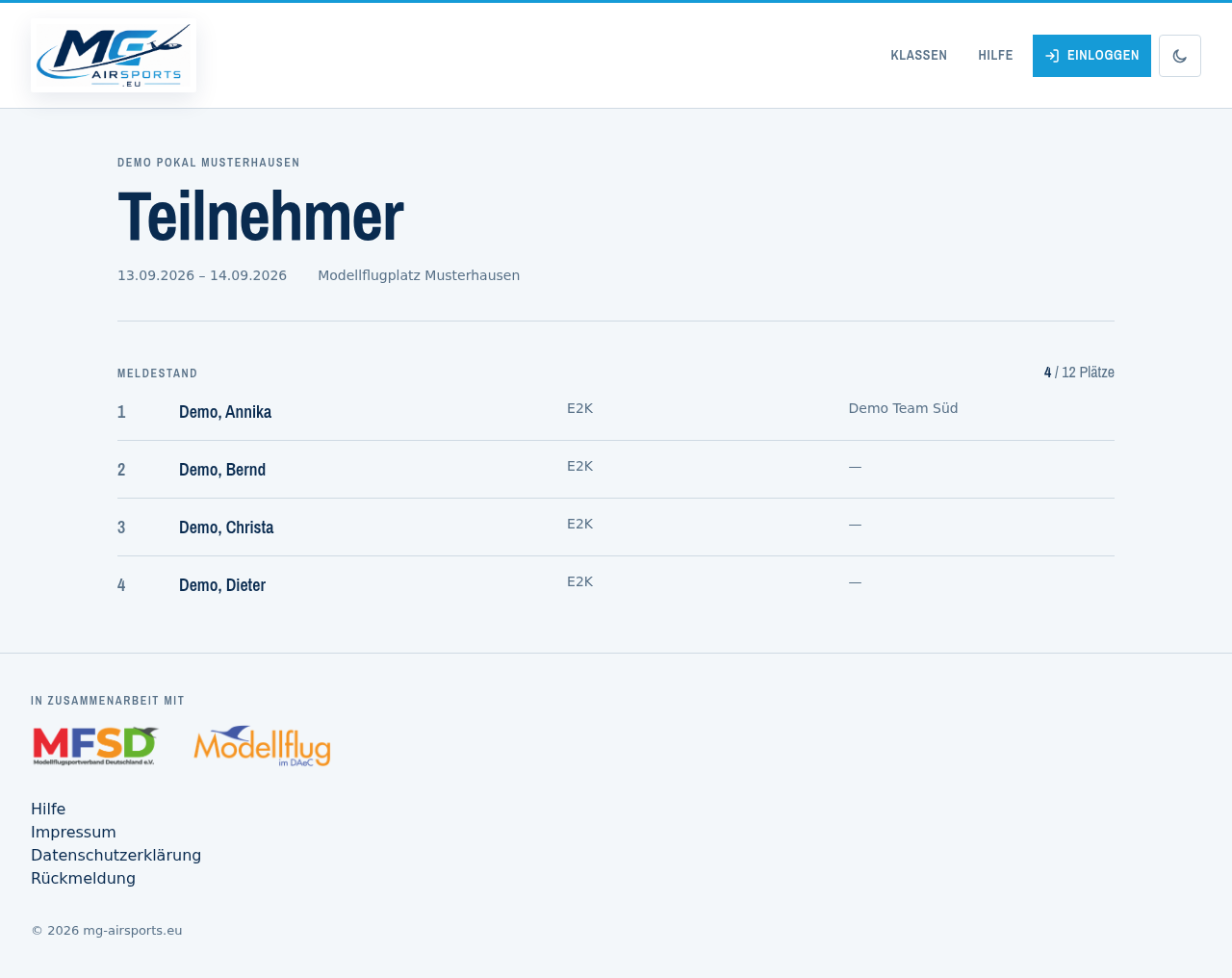
First come, first served. The order follows the time of entry and does not change afterwards. Paying buys no priority either.
When a place becomes free, the next entry moves up automatically and receives an email. Anyone who gave no address is notified by the organiser.
How do I change my entry?
With a user account: My area lists every one of your entries with the links “Change entry” and “Withdraw”.
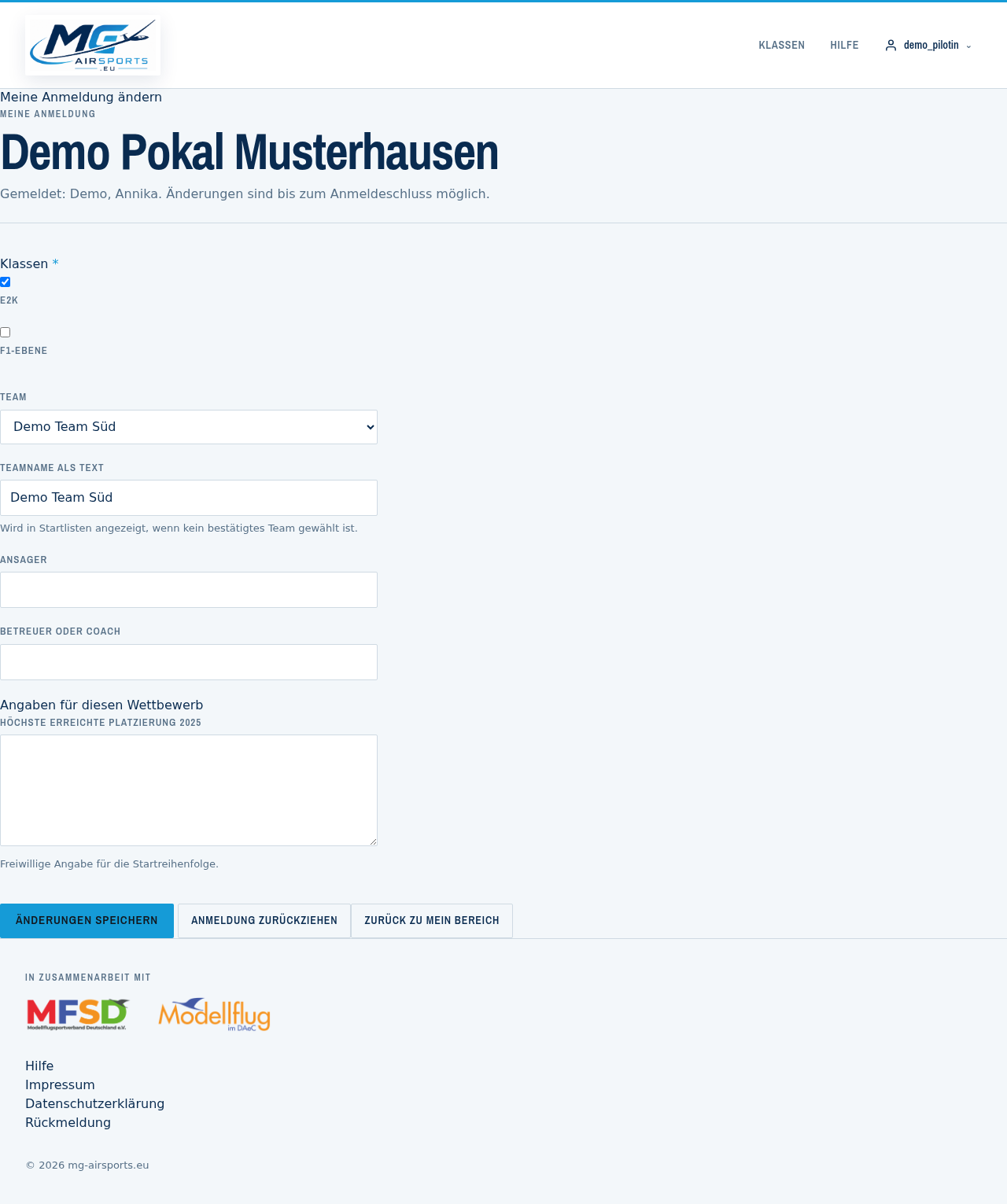
Changes are possible as long as entry is open. After that the organiser builds the start lists, and a change from outside would upset their planning — from then on it goes through them.
Without an account: the link in your confirmation email lets you withdraw. For changes, contact the organiser.
How do I withdraw again?
Three routes, depending on how you entered:
- With an account: the “Withdraw” link under My area. That works at any time, even after the entry deadline.
- Without an account, but with an email address: the personal link in your confirmation email.
- Without an address: contact the organiser.
There is always a confirmation prompt before the final withdrawal. After that the waiting list moves up.
Please withdraw early if you are not coming. The place is no use to anybody if it stays blocked until the day of the competition, and somebody may be waiting on the list.
I have a question about the competition itself. Who do I ask?
The organiser, not this site. The announcement, the entry fee, payments, cancellations because of weather, late entries and the order of the waiting list are all theirs to decide.
Their details are on the competition page. Anyone entered there will find a button on the same page to reach them directly.
This site manages the entry — it knows neither the conditions on site nor the organiser's intentions, and it cannot speak for them.
How do I reach the organiser?
The competition page has a “Contact the organiser” button. It appears when you are logged in and there is an entry in that competition for you or for somebody you manage.
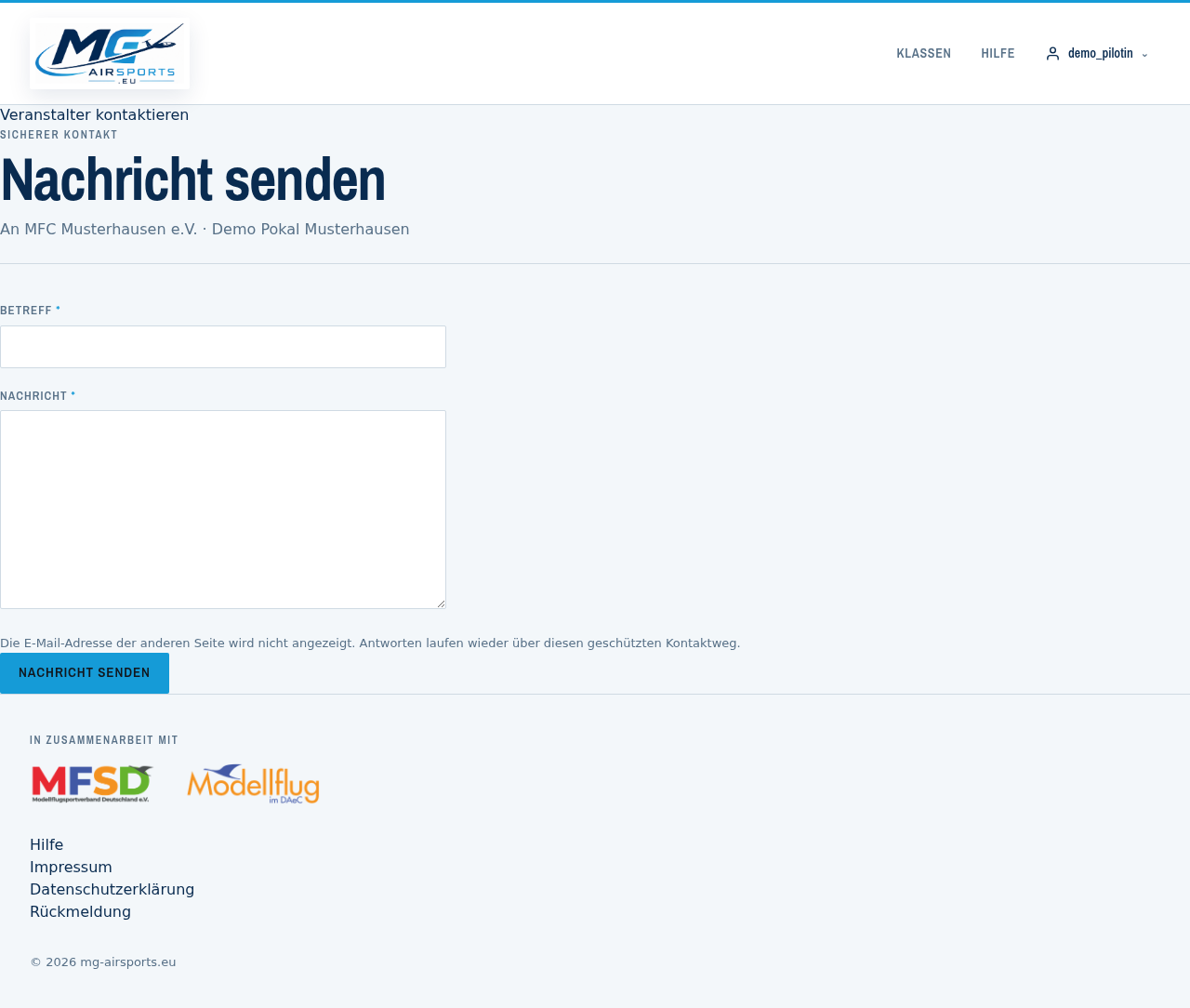
The addresses stay hidden. You do not see the organiser's address, and they do not see yours. The message goes to everybody registered as responsible for the competition, and their reply comes back the same way.
Ten messages per competition per hour are possible. That is not obstruction but protection: otherwise this route could be used to flood a mailbox.
If you get a message saying no reachable address is on file, then the organiser is missing one. In that case the only way is via the details in the announcement.
If you are not entered, the button does not exist. Then what counts is what the announcement says — the organiser gives their contact details there.
My account and my data
Creating an account, maintaining your profile, passwords, and where to report a bug.
Why should I create an account?
An account is not required in order to enter, but it makes a lot of things easier:
- Your details are already filled in the next time you enter.
- All your entries in one place, with payment status and list position.
- Change and withdraw entries yourself, without hunting for the confirmation email.
- Create and manage teams.
- Enter on behalf of others, for instance your children.
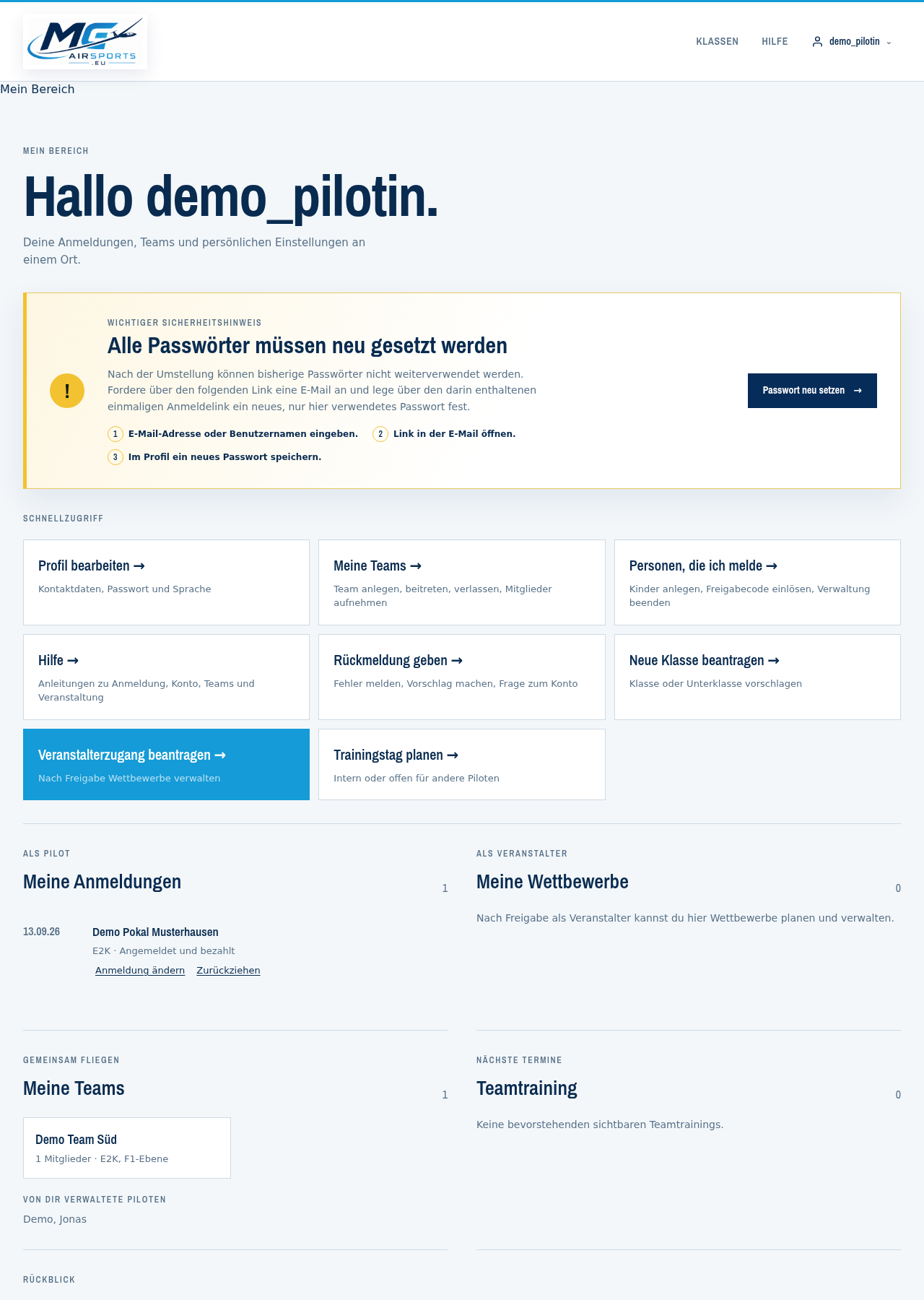
Creating an account takes a minute. You can also enter a competition without one.
How do I create an account?
Via create an account. Four details are needed: username, email address, first name and surname. You do not choose a password here yet.
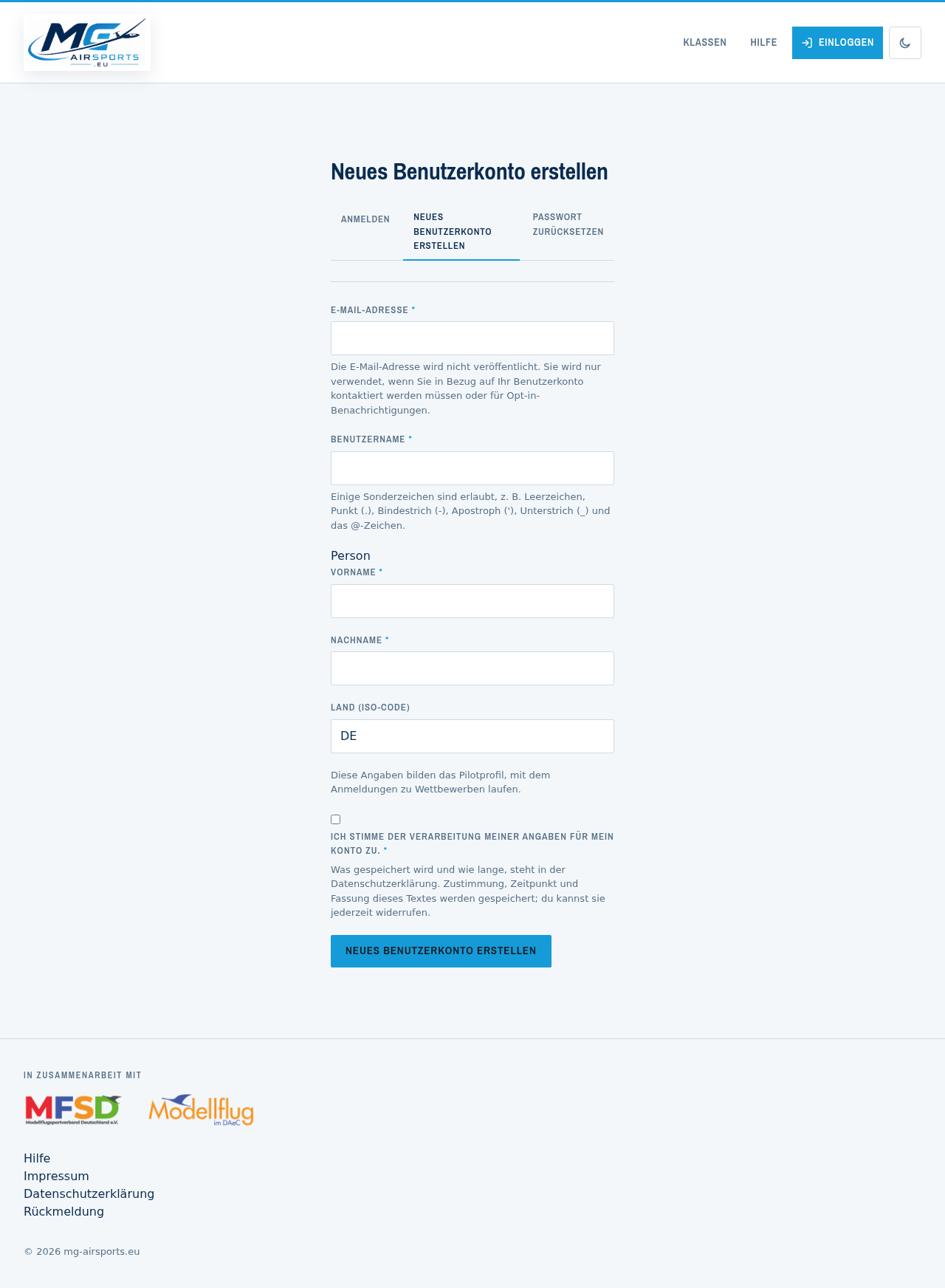
Here is what happens next:
- You receive an email with a personal link.
- The link opens a page where you set your password. It works only once.
- After that you log in as usual with your username and password.
There is a reason for the detour via email: it makes sure the account really belongs to a reachable address. Without the link the account cannot be used — not even by somebody who had created it under your address.
No email arriving? Check your spam folder. If it still does not turn up, get in touch via feedback.
First name and surname are needed because they form your pilot profile — the details that go into start lists and on to the scoring programs. You can change them at any time later.
A pilot profile is created automatically with every account. It holds the details that go into start lists and on to the scoring programs: name, club, country, and whatever you add voluntarily.
If you have taken part in competitions before, you may already exist as a person in the system without an account. In that case get in touch via feedback and we will connect the two — otherwise you appear twice in the lists.
I cannot get into my account. What can I do?
Forgotten password sends you an email with a link that lets you set a new password. Your username or your email address is enough.
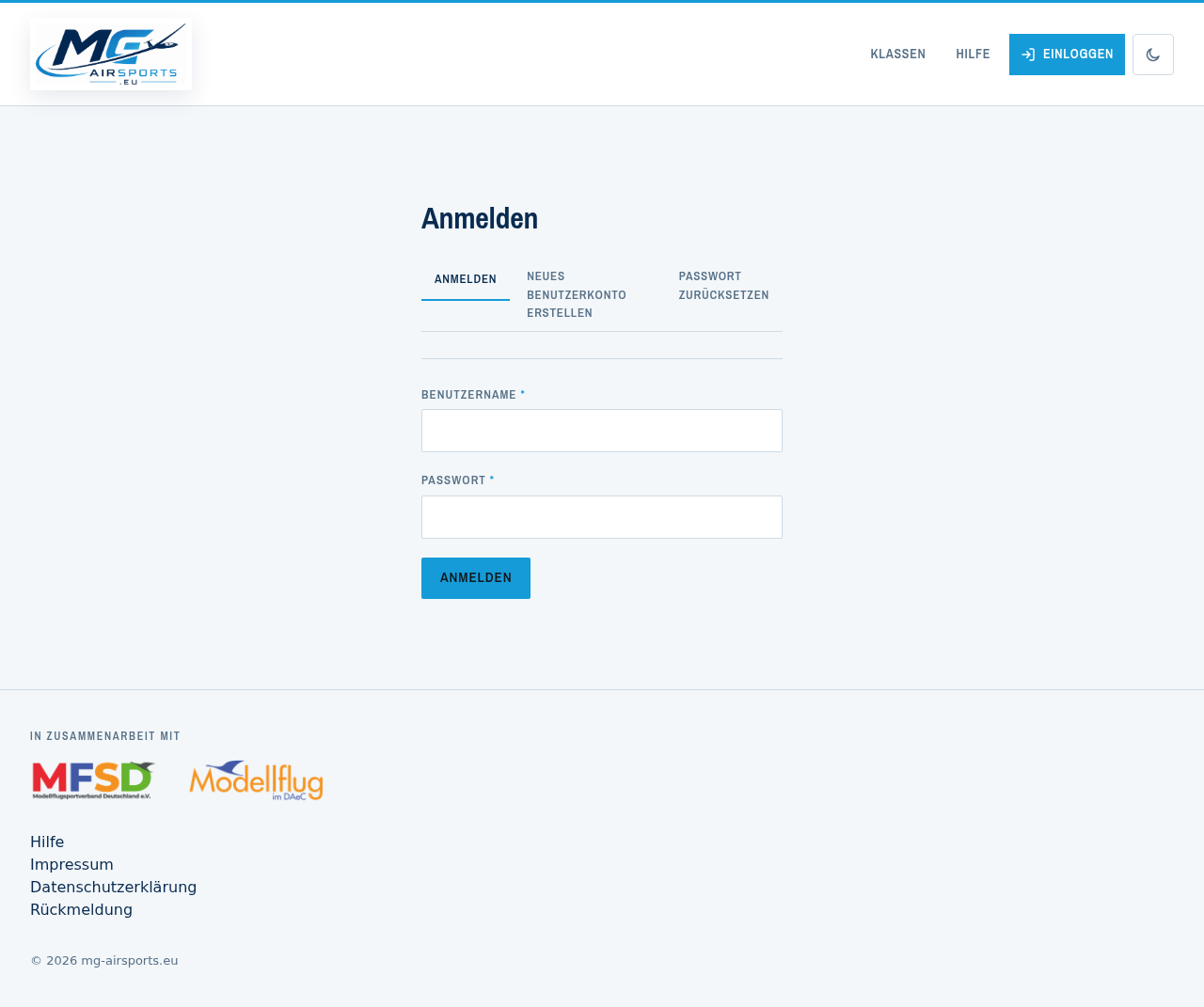
If no email arrives, check your spam folder. If it still does not turn up, get in touch via feedback — the account may hold a different address from the one you expect.
The same procedure applies to your first password after registering: there too the link comes by email, and it works only once.
After several failed attempts the site blocks login for a while. That is deliberate and clears by itself.
How do I change my pilot profile?
Under My area, “People I enter” leads to your profile and to everybody you are allowed to enter. Everything can be maintained there: club, regional association, FAI licence, date of birth, state and transmitter frequencies.
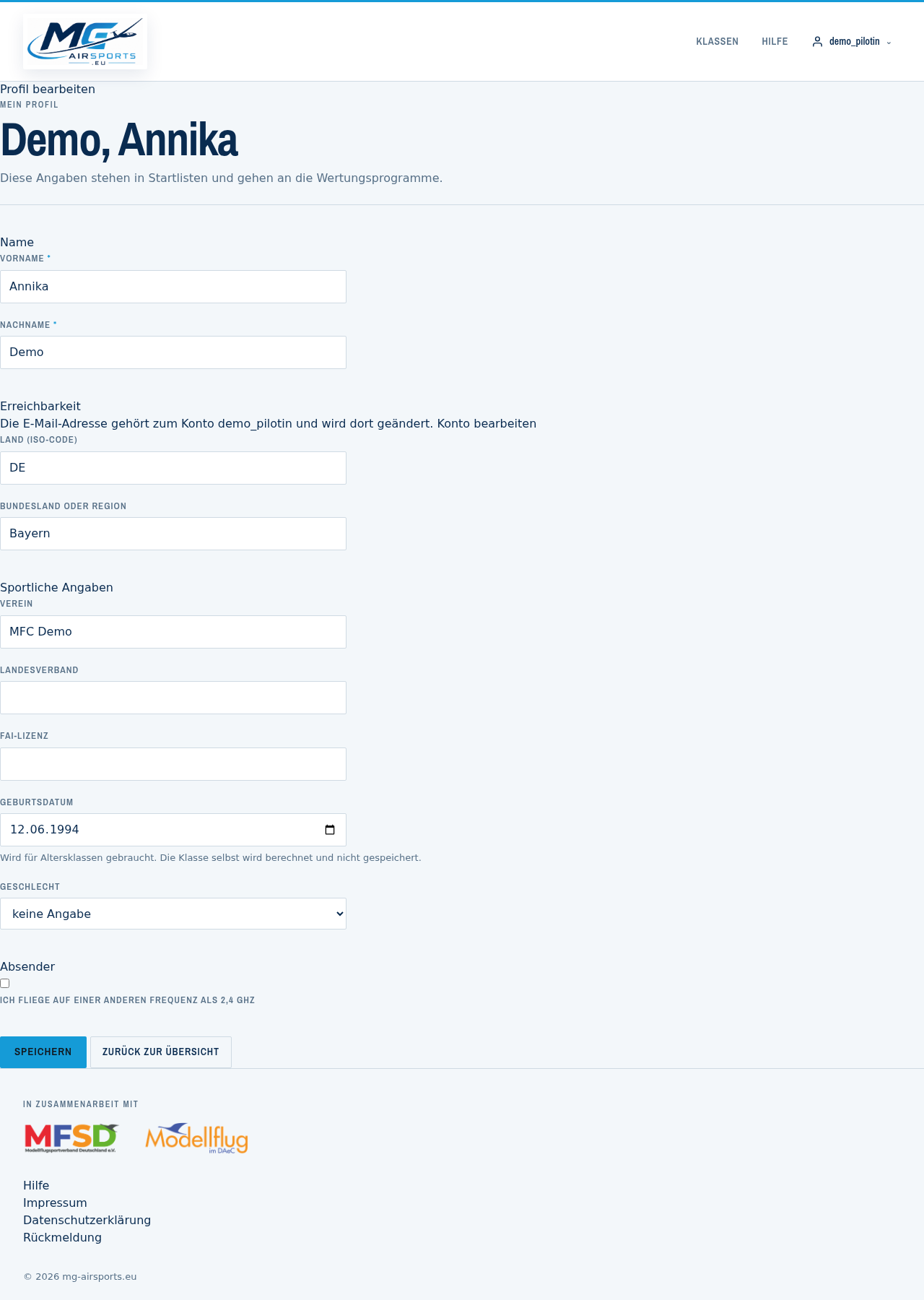
Two things are deliberately not there:
- The email address belongs to the user account and is changed there. Two places for the same detail sooner or later produce two different truths.
- The display name is built from surname and first name, because start lists and scoring programs expect “Kislat, Rolf”.
The date of birth is needed for age categories. It is never publicly visible; participant lists show only name, club, country and class.
Why give transmitter frequencies?
For competitions where frequencies have to be coordinated. Anyone flying on 2.4 GHz needs to give nothing — that is the normal case, which is why the channel fields only appear once you tick “I fly on a different frequency”.
Without that tick, no channels are stored either. Otherwise the record and the export would hold values that nobody sees in the interface.
Something is not working. Where do I report it?
Through the feedback form. It has fixed categories so that the message ends up where it belongs: bug, suggestion, account question, data protection, competition, other.
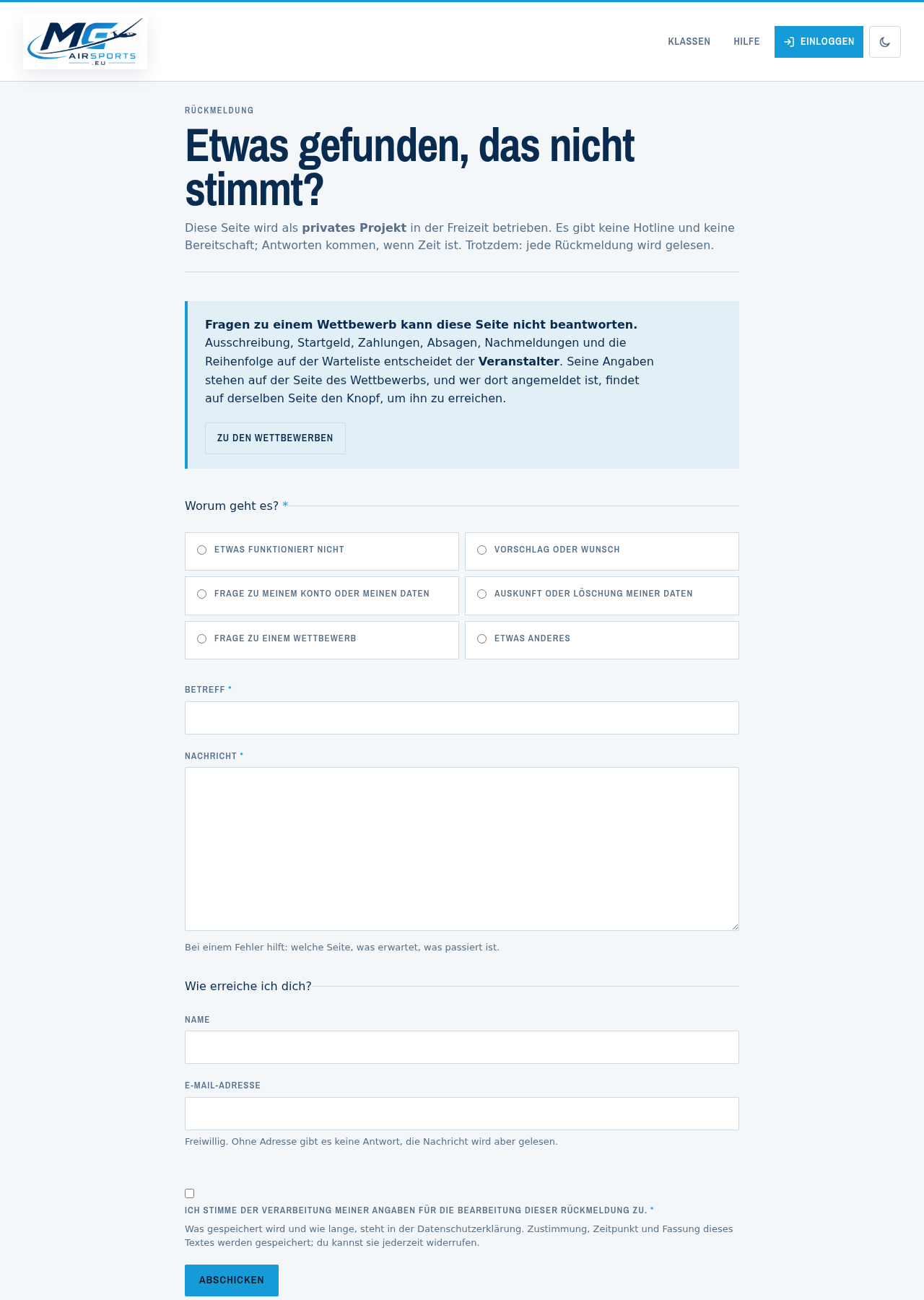
With a bug it helps to know: which page, what you expected, what happened. With those three details a bug can usually be found in minutes; without them, often not at all.
This site is a private project. There is no hotline and no on-call duty; answers come when there is time. Every piece of feedback does get read.
Questions about a competition cannot be answered by this site — the organiser looks after that, and the competition page says how to reach them.
Entering for others: children, teams, clubs
When you are entering more than just yourself.
How do I enter my child?
Under People I enter you create a person without an account of their own. They then appear for selection in the first step of the entry, and you enter them just as you would yourself.
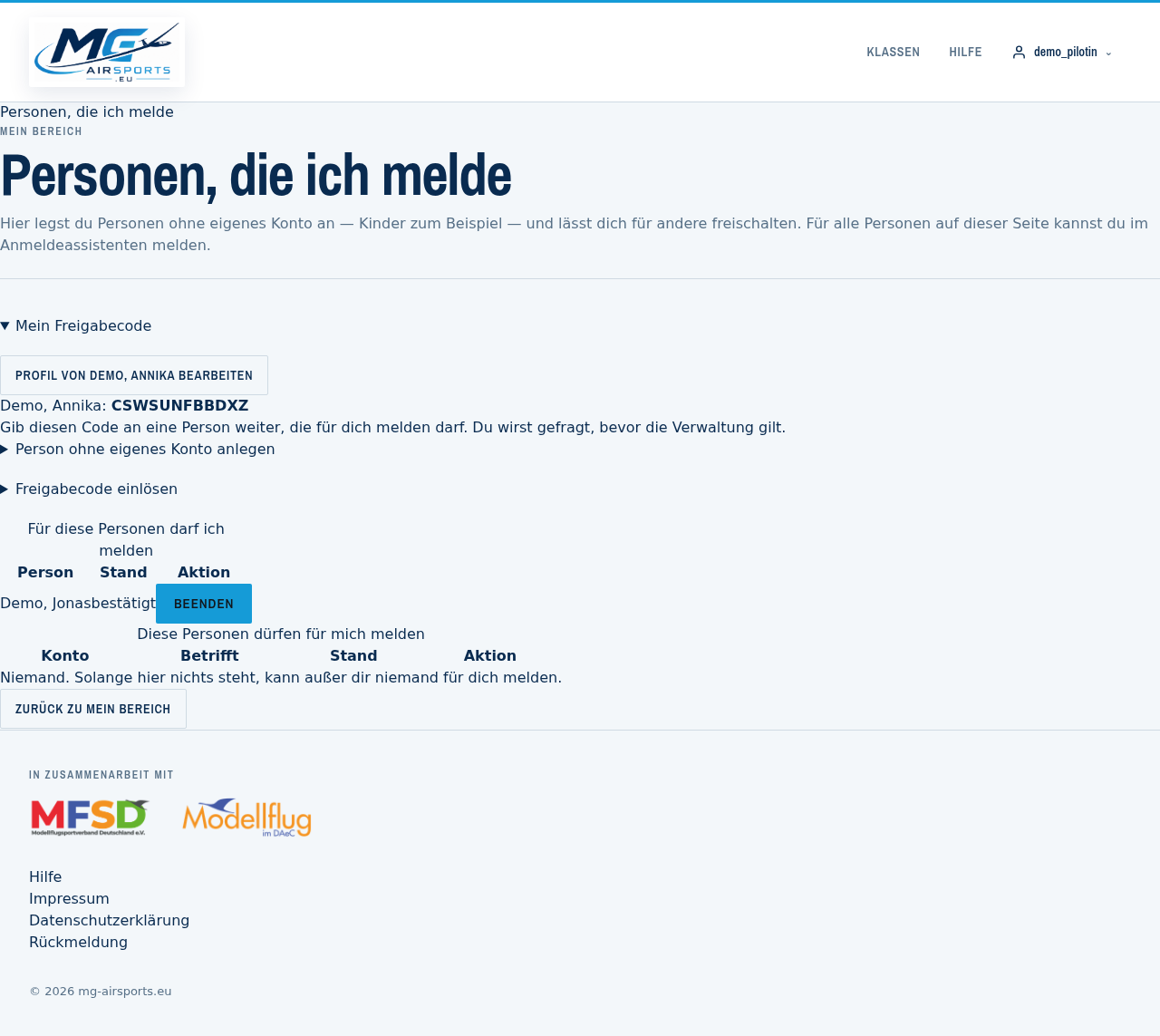
You receive every message about these entries: confirmation, moving up from the waiting list, withdrawal. The child needs no email address of their own for this.
If the child later grows up and wants an account of their own, they can create one; the management arrangement can then be ended without losing the entry history.
What is a release code?
Every person has a release code. With it they allow somebody else to enter them — a partner, for example, a parent, or the club colleague who submits the entries for everyone.
Here is how it works:
- The person finds their code in their area under “People I enter”.
- They pass it on to whoever they like.
- Whoever has the code redeems it under People I enter.
- The person confirms the arrangement by email — only then does it take effect.
If the person has no account of their own, redeeming takes effect immediately: there is nobody who could confirm it.
Treat the code like a password. Anyone holding it can enter and withdraw in your name. The arrangement can be ended at any time.
How do I create a team or join one?
Under My teams. A team has a name and members; the team name appears next to the pilots in the start list.
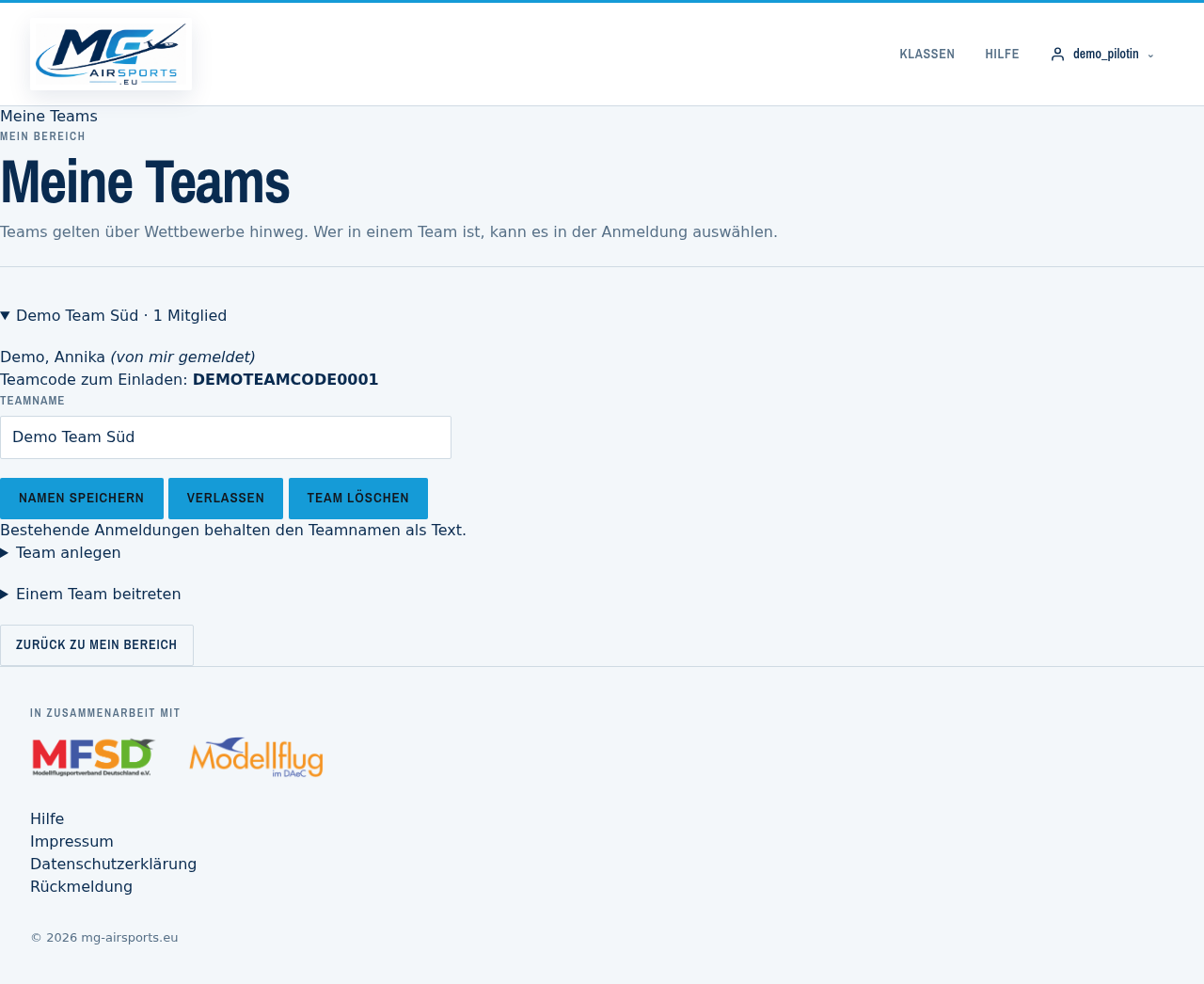
Joining works with the team code that a member passes on. If the team already has members, one of them decides on the request. If it has none yet — because the name was carried over from the old site, for instance — joining takes effect immediately, since there is nobody who could decide.
Deleting is only allowed for somebody who is alone in the team. Otherwise one member would take the others' team away. Existing entries keep the team name as plain text, so they lose nothing.
I enter on behalf of my club. Can that be done in one go?
Yes, via the release codes. Each member gives you their code, you redeem it under People I enter, and after that they all appear in the selection in the first entry step.
For members without an account of their own you simply create the person yourself — then no code is needed.
What does not exist yet: entering several people in one operation. At the moment it is one entry per person, even if you are entering ten people. That is noted as an improvement.
For organisers
Creating a competition, managing entries, exporting start lists, applying for classes.
How do I become an organiser on this site?
Via apply for organiser access. The application goes to the administration; once it is approved you can create and manage competitions.
The access applies to your own competitions. You see and change only what you created, or what another organiser has registered you as a deputy for — not the entries of other people's competitions.
How do I create a competition?
Via create competition, in seven steps: basic data, dates, classes, additional questions, files, visibility and publishing.
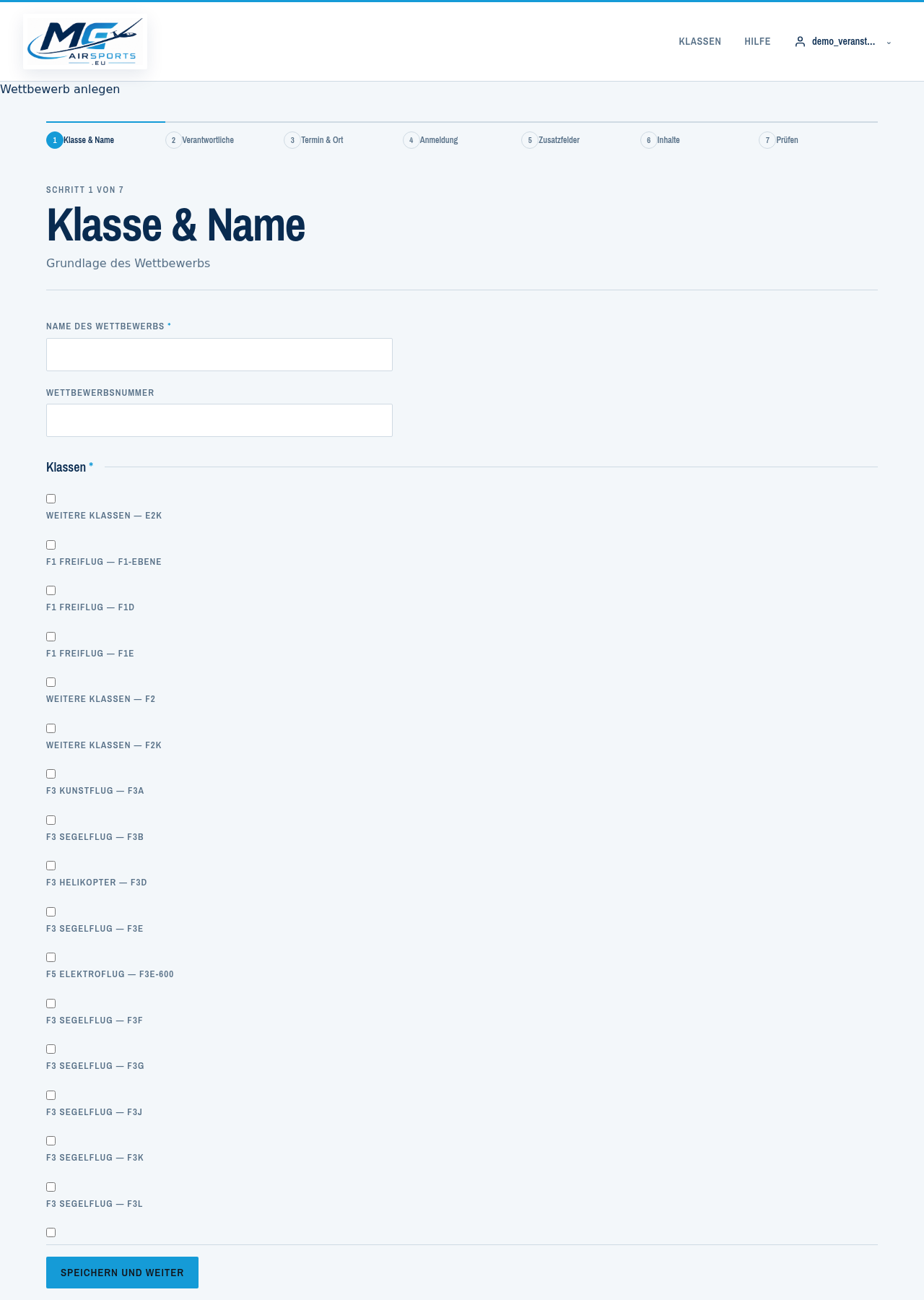
You can stop at any point and carry on later — until it is published the competition stays a draft and is visible to nobody else. You can view the draft as it will later appear; a note at the top tells you that you are looking at a draft.
The entry windows matter: start and end, with the time of day. If entry opens at a fixed time, that is the moment when everybody loads the page at once — the time applies exactly.
How do I get the start list into my scoring program?
With export profiles. You define which columns are output, in which order and with which headings, plus the separator and the character encoding — to match what your program expects.
A profile can additionally be given a download link that the scoring program fetches directly, without logging in. Three things you should know about that:
- The link has a time limit (30 days by default) and can be renewed.
- Every retrieval is logged, and the profile list shows the count and the last retrieval.
- If the profile contains personal columns such as date of birth or email, the form tells you so explicitly. Anyone holding the link holds those details for every participant.
So give the link to the program only, not to a group chat or a mail to many people.
How can I apply for a new class?
Via apply for a new class. The application is deliberately detailed, because a class is permanent and turns up in start lists, announcements and scorings.
What is needed:
- Type — a class of its own, or a sub-class of an existing one.
- Name, as it will appear in lists, such as “F3B”.
- Technical key in lower case, such as
f3b. It later forms part of the class page's address and cannot be changed afterwards. - Short description (30 to 180 characters) for overviews.
- Full description (at least 150 characters): what is flown, how it is scored, where the class comes from.
- Rulebook as a PDF — no rulebook, no class.
- Tile image for the overview.
- Whether the class requires a team.
The administration then decides. Open applications are shown on the front page so that nobody applies for the same thing twice.
Who may see the participant list?
You decide that for each competition, in three levels:
- Public — everybody sees it, even without logging in. That is the normal case and a practical one: participants can see who is coming and whether places are still free.
- Participants only — whoever is entered themselves sees the list.
- Organisers only — nobody except you and your deputies.
Publicly visible in every case are only name, club, country, class, team and start number. Date of birth, address, payment status and the answers to additional questions are seen by nobody but you — regardless of the setting, and not through a data interface either.
Data protection and deletion
What is stored, who sees it, and how to have it deleted.
What data is stored about me?
The full account is in the privacy policy. In brief:
- Account: username, email address, encrypted password, the time of registration and of the last login.
- Pilot profile: name, country, state, club, regional association, FAI licence, date of birth, gender and, if you wish, transmitter frequencies.
- Entries: classes, team, caller, supervisor, payment status, list position and the answers to the organiser's additional questions.
The date of birth is needed for age categories. The age category itself is calculated and not stored, and the date is never public.
The site sets no cookies for statistics or advertising and embeds no external services. A session cookie is only created once you log in.
Who sees my data?
- The organiser of the competition you are entered in, and the deputies they have registered. They see the entry data for their competition, not for others.
- The site's administration, as far as necessary for operation and fault-finding.
- Scoring programs, if the organiser sets up an export. The link has a time limit and is logged.
- Public are name, club, country, class, team and start number — if the organiser makes the participant list public.
No transfer outside the European Union takes place.
How do I get access to my data or have it deleted?
A lot you can do yourself:
- Change profile details under People I enter.
- Change and withdraw entries under My area.
- End management by other people at any time.
For access and deletion, a message via feedback with the category “Access to or deletion of my data” is enough. The address for data protection enquiries is also given in the privacy policy.
On deletion everything belonging to you disappears: entries, answers to additional questions including uploaded proof, management relationships and the person record itself. Teams remain, because they belong to others — you are simply removed from the member list.
You also have the right to rectification, to restriction of processing, to data portability and to object, and you can lodge a complaint with a supervisory authority.
What happens to my data if I delete my account?
The account and its email address disappear. Your pilot profile remains if entries are attached to it — but it is detached from the account and is afterwards like a person without an account.
The reason: start lists and results of past competitions should not vanish because somebody closes their account. A competition result without participants would not be one.
If no entries are attached to it, the profile is deleted along with the account.
If you really want everything deleted, entry history included, say so explicitly via feedback — there is a separate route for that.